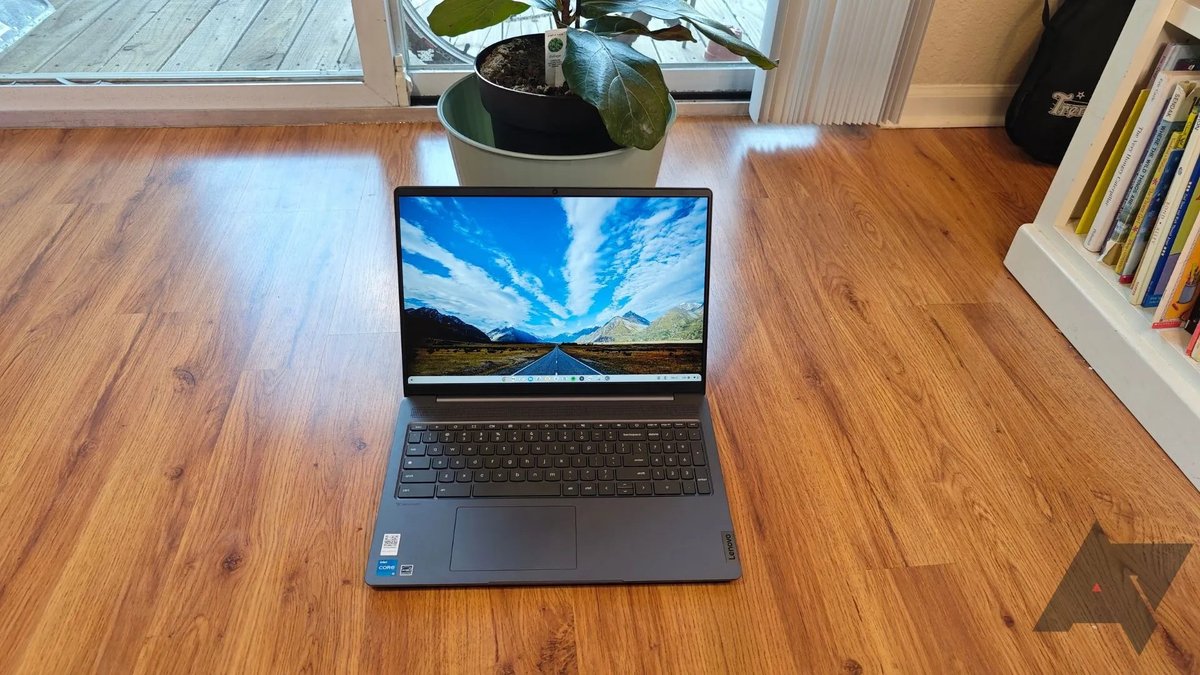
When your Chromebook starts acting up, it can feel like a sudden halt to your digital life. Whether it’s a sluggish response, a flickering screen, or a complete refusal to connect, diagnosing common Chromebook glitches often feels like deciphering a secret code. But before you panic or consider tossing your trusty device, know this: your Chromebook comes equipped with a powerful, yet often overlooked, built-in tool designed specifically for troubleshooting. Mastering this and a few common fixes can save you a trip to support and get you back on track quickly.
At a Glance: Your Chromebook Troubleshooting Toolkit
- The Diagnostics App is your go-to: Find it via the Launcher search (look for the heart monitor icon) to check hardware health (battery, CPU, memory).
- Simple restarts solve many problems: It’s cliché, but often effective.
- Keep Chrome OS updated: Regular updates fix bugs and improve performance.
- Powerwash and Recovery are last resorts: These erase your local data, so always back up to the cloud first.
- Check external factors first: Cables, Wi-Fi, power outlets, and peripheral connections can be the real culprits.
- Don't forget browser basics: Extensions, cached data, and too many tabs can bog down performance.
The Chromebook Diagnostics App: Your First Responder
Think of your Chromebook's Diagnostics app as its personal health monitor. It's designed to give you an immediate, comprehensive look under the hood, helping you pinpoint hardware issues without needing to be a tech wizard.
Where to Find It:
Simply open your Launcher (the circle icon in the bottom-left corner) and search for "Diagnostics." You'll see an icon that resembles a heart monitor. Click it open.
What It Tells You:
Once launched, the app provides critical system information at a glance:
- Model and Motherboard: Essential details if you ever need to contact support.
- Battery Health: Crucial for identifying power issues. It shows cycle count, voltage, and health percentage.
- CPU Usage and Temperature: Helps you understand if your processor is overworked or overheating.
- Memory (RAM): Shows how much memory is in use, which is key for diagnosing slow performance.
- Built-in Tests: The app also lets you run specific tests for CPU, memory, and battery, giving you pass/fail results to confirm hardware integrity.
By starting here, you can often quickly rule out — or confirm — underlying hardware problems before diving into more complex software fixes.
Common Chromebook Glitches and How to Solve Them
Now, let's tackle the specific issues you might encounter, moving from general system problems to browser and connectivity woes.
System-Wide Performance Woes
A sluggish Chromebook can turn simple tasks into frustrating ordeals. These issues often stem from system processes, outdated software, or hardware limitations.
When Your Chromebook Feels Like It's Running Through Molasses
If your Chromebook is noticeably slow, dragging its feet on every click, start with these steps:
- A Simple Restart: This is the golden rule of tech troubleshooting for a reason. It clears temporary files and resets processes that might be hogging resources.
- Update Chrome OS: Head to Settings > About Chrome OS > Check for updates. Google regularly releases updates that improve performance and fix known bugs. Ensuring you're on the latest version can often resolve lingering slowdowns.
- Manage Browser Lag: If the lag is specific to browsing, consider these:
- Disable Extensions: Extensions, while useful, can be resource hogs. Temporarily disable them all (Chrome Menu > More tools > Extensions) and re-enable them one by one to identify the culprit.
- Reinstall Chrome: A fresh browser install can sometimes clear up deep-seated issues.
- Tab Management: Too many open tabs drain memory. Use a tab management extension or simply close tabs you're not actively using.
- Consider Hardware Limits: An older Chromebook with low RAM (e.g., 2GB or 4GB) might simply struggle with demanding tasks or many open tabs.
Random Restarts or the Dreaded "Chrome OS is Missing or Damaged" Message
This is a more serious issue, often indicating a corrupted operating system. When your Chromebook keeps restarting unexpectedly or displays an error about Chrome OS being missing, it's time for a full Recovery.
A Recovery reinstalls Chrome OS from an external source, essentially giving your Chromebook a fresh start. Warning: This will erase all local data on your Chromebook, so ensure everything important is backed up to Google Drive or another cloud service first.
How to Perform a Recovery:
- Gather Your Tools: You'll need a separate computer (Windows, Mac, or another Chromebook) with the Chrome browser installed, and an 8GB or larger USB flash drive or SD card.
- Install Recovery Utility: On the separate computer, open Chrome and install the "Chromebook Recovery Utility" extension from the Chrome Web Store.
- Launch and Create Recovery Media: Launch the utility, click "Get started," and follow the prompts to enter your Chromebook's model number (usually found on a sticker on the device's underside). Select your USB/SD drive and click "Create now."
- Initiate Recovery on Your Chromebook:
- Turn off the problematic Chromebook.
- Hold down Esc + Refresh (F3) + Power button simultaneously.
- When you see the recovery screen, insert the USB/SD drive.
- Follow the on-screen instructions to reinstall Chrome OS.
To erase your recovery media for future use, open the utility, click the gear icon (top-right), choose "Erase recovery media," select your device, and click "Erase now." This is a robust solution to fix your glitchy Chromebook when the operating system itself is compromised.
Update Errors: When Chrome OS Refuses to Get With the Program
If your Chromebook struggles to update, follow these steps:
- Stable Connection First: Ensure you have a strong, stable Wi-Fi or Ethernet connection. Avoid using cellular data for updates if possible, as it can be less reliable and incur charges.
- Restart: Again, a quick restart can clear temporary network glitches.
- Powerwash as a Last Resort: If updates still won't go through, signing out and performing a Powerwash (a factory reset) might be necessary.
- Back up your data! Everything stored locally will be erased.
- Press Ctrl + Alt + Shift + R.
- Click Restart.
- Choose Powerwash, then Continue.
- After the Powerwash, try updating again.
Sign-in Headaches
If you're locked out:
- Double-Check Credentials: It sounds simple, but carefully re-enter your Google account password and username. Ensure Caps Lock isn't accidentally on.
- Google Support: If you're certain your details are correct, refer to Google support's dedicated pages for specific sign-in error messages or account recovery.
Black Screen Blues
When your Chromebook seems on, but nothing shows up:
- Basic Checks:
- Is the battery completely drained? Plug it in and wait at least 10-15 minutes.
- Is the brightness turned all the way down? Use the brightness keys (usually F6/F7 or sun icons).
- Perform a Hard Reset: This is different from a Powerwash. It just cycles the power without erasing data.
- Turn off the Chromebook.
- Hold down the Refresh key (looks like a circular arrow, usually F3) and then tap the Power button.
- Release the Refresh key once the Chromebook starts up.
- External Display Test: If the Chromebook seems active (lights on, fan noise) but there's no display, connect it to an external monitor or TV. If it displays there, your Chromebook's internal screen might need servicing.
Mute Mics and Blind Cameras
Remote work and learning rely on these. If yours aren't cooperating:
- Hard Reset: Start with a hard reset as described above.
- Chrome OS Updates: Ensure Chrome OS is fully updated, as bug fixes often address peripheral issues.
- Check App Permissions: For the camera, go to Settings > Apps > Manage your apps. Select the app you're using (e.g., Google Meet, Zoom) and ensure camera and microphone permissions are enabled. For websites, go to Chrome Settings > Privacy and Security > Site settings > Camera and confirm the site has permission.
- Try Different Apps/Devices:
- Camera: Test the camera in a different app. If it works, reinstall the problematic app. If it doesn't work anywhere, use Google's built-in Task Manager (Search + Esc or Shift + Esc) to close unnecessary processes that might be interfering.
- Microphone: Test with another app or platform. If it's a constant problem, using an external headset might be a temporary workaround.
- Powerwash or Recovery: If issues persist after all software checks, a Powerwash or full Recovery might be necessary, but only after backing up data.
- External Peripherals: If using an external camera or microphone, test it on another device to rule out a faulty peripheral.
Unresponsive Keyboard or Trackpad
When typing or navigating becomes impossible:
- Restart: The first, easiest step.
- Test Guest Mode: Log in as a guest user. If the keyboard/trackpad works fine there, the issue might be with your user profile or extensions. Try deleting and re-adding your main user account (after backing up any local data).
- Trackpad Specific Fixes:
- "Drumroll" Fingers: Rapidly tap/drum your fingers across the entire touchpad for about 10 seconds. This can sometimes reset it.
- Press Esc Repeatedly: Some users report this can unstick a frozen touchpad.
- Clean the Touchpad: Dust, grime, or oils can interfere with sensitivity. Use a microfiber cloth.
- Hard Reset or Powerwash: If the problem persists, perform a hard reset. If still no luck, a Powerwash might be needed.
- Diagnostics App: Remember the Diagnostics app? It has tests for peripherals, which can confirm if the hardware itself is failing.
- External Devices:
- USB Keyboard/Mouse: Try a different USB port. Test the external device on another computer.
- Bluetooth: Ensure the Bluetooth keyboard/mouse isn't connected to another device, and verify your Chromebook's Bluetooth is enabled and paired correctly.
Power Problems: Won't Turn On or Charge
Few things are more alarming than a dead Chromebook:
- Give It Time: If the battery was completely drained, allow at least 30 minutes of charging before attempting to turn it on.
- Check Power Outlet/Circuit: Try a different wall outlet or even a different room to rule out a faulty power source.
- Inspect Charger: Look for any damage (frays, bends) on the charger cable and adapter. Try a different charger if you have one compatible with your Chromebook.
- Hard Reset: Perform a hard reset as described in the "Black Screen Blues" section.
- Battery Discharge (Specific Models): For some models, removing the battery (if user-removable) and holding the power button for 30 seconds can discharge residual power, then reassemble and charge for 30 minutes. (Consult your specific model's manual for this, as many newer Chromebooks have non-removable batteries).
- Check Charge Status: In Settings > Device > Power, you can usually see the charging status and battery health. The Diagnostics app also provides detailed battery information.
Unknown File Type Errors
Chromebooks are web-centric, meaning they have native support for common file types but not everything.
- Know Your Formats: Chromebooks generally support Microsoft Office files (DOC, DOCX, XLS, XLSX, PPT, PPTX), media (MP3, MP4), images (JPG, PNG, GIF), and compressed archives (ZIP, RAR).
- Use an App: For unsupported files, search the Chrome Web Store or Google Play Store (if your Chromebook supports Android apps) for a format-specific viewer or editor.
- Online Converters: Free online file conversion websites can quickly reformat files into compatible types.
- Cloud Storage: Many cloud services (like Google Drive) can preview or convert various file types directly.
Word Docs Woes and Zoom Struggles
Specific app issues often have specific solutions:
- Microsoft Word Documents:
- Google Docs: The most integrated solution. Upload your Word document to Google Drive and open it with Google Docs for seamless editing and collaboration.
- Microsoft Word Android App: If your Chromebook supports Android apps, download the official Microsoft Word app from the Google Play Store for a more traditional experience.
- Zoom Not Working:
- Use the PWA: The old Chrome OS app for Zoom is no longer supported. Instead, use the Progressive Web App (PWA) version from the Chrome Web Store or simply open Zoom in your Chrome browser.
- Google Family Link: If you're a student on a managed device, Google Family Link settings can sometimes interfere. A common workaround is for students to manually enter the Zoom Room number rather than relying on invite links.
- Feature Limitations: Be aware that some advanced Zoom features might be limited on Chrome OS compared to desktop applications.
Browser-Specific Breakdown
Most of what you do on a Chromebook happens in the browser. When the browser acts up, it's a big deal.
Tabs Constantly Reloading, Sluggish Performance, or the Infamous "Aw, snap!" Error
These usually point to resource contention or problematic browser elements.
- Close Unnecessary Tabs/Windows: Every open tab consumes memory. Close what you don't need.
- Use Chrome's Task Manager: This is your best friend for browser-specific issues.
- Press Search + Esc or Shift + Esc.
- Identify and end memory-intensive apps or extensions. Caution: Avoid ending "system" entries unless you know what you're doing, as this can destabilize your Chromebook.
- Remove Problematic Apps/Extensions:
- Apps: In the Launcher, click the Up arrow, right-click on an app you suspect is causing issues, and choose "Uninstall."
- Extensions: Go to Chrome Menu (three-dot icon) > More tools > Extensions. Remove or toggle off extensions, especially recently installed ones.
- Clear Browser Cache: Old cached data can sometimes cause conflicts. Go to Chrome Menu > More tools > Clear browsing data.
- Incognito Mode Test: Try browsing in an Incognito window. If the problem disappears, it's likely an extension or cached data issue with your regular profile.
- Check Internet Connection: A poor or intermittent connection can also manifest as slow loading or tab reloads.
"This Web Page Is Not Available"
This error often indicates a problem with how your browser is connecting to the internet, even if your Wi-Fi is fine.
- Delete All Cookies: Go to Chrome Menu > More tools > Clear browsing data, and select "Cookies and other site data" (and potentially "Cached images and files"). Alternatively, press Ctrl + Shift + Backspace to open the clear browsing data menu directly.
- Check Proxy Settings: Incorrect proxy settings are a common culprit, especially on managed networks or if you've been experimenting with VPNs.
- Go to Settings > Network > (your current connection) > Proxy setting.
- If using a guest profile, toggle "Allow proxies for shared networks" on and input the correct settings if required by your network administrator. Most home users won't need this, so ensure it's set to "Direct connection" or "Automatically detect settings" if you're unsure.
Connectivity Conundrums
From Wi-Fi to Bluetooth, staying connected is fundamental. Here's how to troubleshoot when your Chromebook can't link up.
Can't Connect to Wi-Fi or "Network Not Available"
The internet is essential for a Chromebook, so this is a critical fix.
- Check Wi-Fi Icon: Look near the System clock (bottom-right corner) for the Wi-Fi icon. Ensure it's enabled (usually blue or filled in).
- Restart Router/Modem: Power cycle your home router and modem. Wait 60 seconds after unplugging before plugging them back in.
- Try Another Network: If possible, try connecting to a different Wi-Fi network (e.g., a hotspot, a neighbor's network with permission) to determine if the issue is with your Chromebook or your home network.
- Router Compatibility: Very old routers might have compatibility issues with newer Chrome OS versions. Consider upgrading your router if it's quite old and you've exhausted other options.
- "Network Not Available" During Setup (Advanced): If you encounter this during the initial setup of a new Chromebook:
- Activate developer mode (press Ctrl + D at the recovery screen).
- Log in as a guest.
- Open the Terminal (Ctrl + Alt + T).
- Run
shell update_engine_client -update(you might need to run this multiple times). - Restart the Chromebook and re-enable OS verification. This is a highly specific workaround for a rare setup issue.
- "Unrecognized Error - Too Many STAs": This often means your router is overloaded. Disconnect other devices, restart the router, or contact your internet provider.
Can't Connect to a Second Screen
Expanding your workspace is great, until it doesn't work.
- Check Display Settings:
- Click the System clock (bottom-right).
- Click the Gear icon (Settings).
- Go to Device > Displays.
- Ensure the external display is detected. Adjust options like mirroring, extending the desktop, rotation, or alignment.
- Cables and Ports:
- Try a different HDMI/DisplayPort/USB-C cable.
- Try a different port on both your Chromebook and the monitor.
- If using a USB dock or adapter, disconnect and reconnect it. Try connecting directly if possible.
- Chrome OS Updates: Ensure your Chromebook is up to date, as display driver improvements are often part of updates.
- Test Another Monitor: If you have access, try connecting to a different external monitor to rule out an issue with your primary external display.
Can't Hear Anything
A silent Chromebook can spoil your entertainment or productivity.
- Check Headphones/External Devices: Are headphones plugged in? Is an external speaker connected? Disconnect them to see if sound returns through the internal speakers.
- Volume Slider: Click the System clock and ensure the volume slider is not at zero or muted.
- Correct Output Device: Next to the volume slider in the System clock quick settings, there's usually a right arrow. Click it to select the correct audio output device (e.g., "Internal Speakers" vs. your monitor's speakers, or Bluetooth headphones).
- Restart/Hard Reset: If the correct device is selected and volume is up, try a restart, then a hard reset.
- Diagnostics App: While less direct, the Diagnostics app's CPU and memory tests can indirectly confirm system health, which might be related if audio drivers are failing.
Bluetooth Blips
Connecting wireless peripherals should be seamless.
- Verify Bluetooth: Ensure your Chromebook actually has Bluetooth hardware. Most modern ones do.
- Enable Bluetooth: Click the System clock and check the Bluetooth icon. It should be blue (enabled). Toggle it off and on.
- Device Proximity and Pairing Mode: Make sure your Bluetooth device is close to the Chromebook and in its pairing mode (often indicated by a flashing light).
- Check Pairing Codes: Some devices require a specific pairing code. Double-check this if prompted.
- Forget and Re-pair: In Settings > Bluetooth, forget the problematic device and attempt to re-pair it.
- Interference: Other wireless devices can sometimes interfere. Try to move away from other electronics briefly.
Printer Puzzles
Chromebooks often connect to network printers, but issues can arise.
- Verify Printer Information: In Settings > Advanced > Printing > Printers, ensure your printer is correctly listed and configured.
- Remove and Re-add: Often, the simplest fix is to remove the printer from your Chromebook's settings and then re-add it.
- Printer Firmware: Check your printer manufacturer's website for any available firmware updates. Outdated firmware can cause compatibility issues.
- Network Connection: Ensure both your Chromebook and the printer are on the same Wi-Fi network.
- Google Cloud Print (Legacy): Note that Google Cloud Print has been deprecated. If you're using an older printer, ensure it supports "CUPS" (Common Unix Printing System) or has an official Chrome OS driver/app.
When All Else Fails: Reaching Out for Help
If you've systematically worked through these steps and your Chromebook is still misbehaving, it's time to consider a few more drastic measures or seek external support.
Powerwash and Recovery: As discussed, these are powerful tools that reset your Chromebook to its factory state, often resolving deep-seated software issues. Remember, always back up your data to the cloud first. A Powerwash is a factory reset that can be initiated from the settings, while a Recovery reinstalls the Chrome OS entirely from external media, usually reserved for situations where the OS is corrupted. For persistent, severe issues that make your device unreliable, performing a comprehensive recovery can revive your glitchy Chromebook to its original performance.
Seek Official Support:
- Google Support: Google's official Chromebook support pages are an excellent resource for specific error codes or troubleshooting guides tailored to Chrome OS.
- Manufacturer Support: If you suspect a hardware problem (confirmed by the Diagnostics app, for instance), contact your Chromebook's manufacturer (e.g., Acer, ASUS, HP, Lenovo, Samsung). Have your model number and any error codes ready.
- Professional Repair: If hardware is indeed the problem and your device is out of warranty, a reputable repair shop might be able to help.
Keeping Your Chromebook Running Smoothly
Proactive maintenance can prevent many glitches. Regularly check for Chrome OS updates, be mindful of the extensions and apps you install, and perform occasional hard resets if your Chromebook feels sluggish. Your Chromebook is designed for simplicity and reliability, but even the best tools need a little attention to stay in top form. By understanding these common issues and knowing your way around the Diagnostics app, you're well-equipped to keep your digital companion humming along happily. With a little care and these troubleshooting tips, you can effectively fix your glitchy Chromebook and maintain its performance.