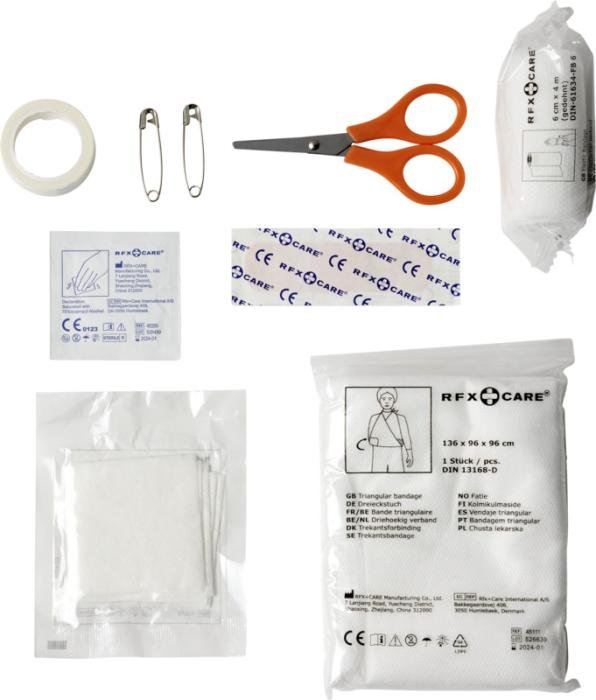
The feeling of a responsive, zippy Chromebook is a joy, but that joy quickly turns to frustration when it starts acting up. Whether it’s a flickering screen, a sluggish system, or a Wi-Fi connection that just won't stick, a glitchy Chromebook can throw a wrench into your day. This guide offers Essential First-Aid for Glitchy Chromebooks to help you troubleshoot and fix common issues, empowering you to get back to smooth computing without a trip to the repair shop.
We'll walk you through diagnosing problems, applying immediate fixes, and even performing deeper system resets when needed. Think of this as your comprehensive toolkit for keeping your Chromebook running smoothly.
At a Glance: Your Chromebook First-Aid Kit
- Restart often: The simplest fix for many issues, from apps crashing to connectivity problems.
- Check connections: Ensure all cables, chargers, and external devices are securely plugged in.
- Cleanliness counts: Dust and debris can cause hardware malfunctions.
- Update ChromeOS: Outdated software often leads to performance and security issues.
- Back up data: Before any major system reset, safeguard your important files to Google Drive.
- Powerwash as a last resort: This resets your Chromebook to factory settings, solving many software conflicts.
- Know your warranty: Complex hardware issues might be covered.
Hardware Hiccups: Diagnosing Physical Woes
Sometimes, the problem isn't the software, but the physical components of your Chromebook. These issues can be particularly frustrating, but many have straightforward first-aid solutions.
Screen Troubles: Pixels, Flickers, and Blackouts
A screen that's dead, flickering, or simply won't turn on can make your Chromebook feel like a brick. Before panicking, consider these common fixes.
Diagnosing and Quick Fixes
- Is it just asleep? Press any key or move the trackpad to wake it. Sometimes, your Chromebook might just be in a deep sleep.
- Brightness check: Accidental key presses can dim the screen to zero. Use the brightness keys (usually F6/F7 or sun icons on the top row) to increase it.
- Clean the screen: Dust and smudges can sometimes interfere with touchscreens or make visual defects seem worse.
- External monitor test: If you have an external monitor, plug your Chromebook into it. If the image appears there, your Chromebook's internal display is likely the issue, not the system itself.
Deeper Solutions
- Forced reset: If the screen is black and unresponsive, hold the power button for 10 seconds to perform a hard reset. This often resolves temporary display glitches.
- Warranty check: If the screen remains dead or defective even after these steps, especially with visible dead pixels or lines, it might be a hardware failure. Check your warranty status for a potential screen replacement.
Keyboard Conundrums: Sticky Keys and Unresponsive Input
A malfunctioning keyboard can halt your productivity. Whether it's a few sticky keys or the whole board refusing to type, these steps can help.
Diagnosing and Quick Fixes
- Clear the clutter: Crumbs, dust, and debris are notorious keyboard culprits. Gently shake your Chromebook upside down, or use compressed air to clear under the keys.
- A quick reboot: Sometimes, a simple restart can bring a non-responsive keyboard back to life.
- Run diagnostics: ChromeOS has built-in diagnostic tools. Go to
Settings > Diagnostics > Internal Keyboard > Testto see if individual keys are registering.
Deeper Solutions
- External or virtual keyboard: As a temporary workaround, plug in a USB keyboard or activate the on-screen keyboard (
Settings > Accessibility > Keyboard and text input > Enable on-screen keyboard). This allows you to continue working while troubleshooting. - Hard reset: A specific hard reset for input devices can sometimes resolve keyboard issues. Hold down the
Refreshkey (the circular arrow) and thePowerbutton for about 10 seconds. This resets the hardware components without erasing your data. - Professional repair: If the problem persists, especially after physical damage or a liquid spill, professional repair or replacement of the keyboard might be necessary.
Battery Blues: Fast Drain, No Charge, or Plugged-In Dependency
Battery issues are common, ranging from a battery that drains too quickly to one that refuses to charge at all.
Diagnosing and Quick Fixes
- Check your charger: Ensure the charger is fully plugged into both the Chromebook and the wall outlet. Try a different outlet or even a different, compatible charger if you have one, as faulty chargers are a frequent cause of "no charge" issues.
- Close power-hungry apps: Background apps, especially Android apps or Linux containers, can drain your battery quickly. Close any unnecessary programs.
- Reduce screen brightness: The display is often the biggest power consumer.
- Monitor battery health: Some Chromebooks offer basic battery health information in the settings or by typing
battery_testinto the Crosh terminal (Ctrl + Alt + T).
Deeper Solutions
- Calibrate the battery (sometimes): While not officially supported for all Chromebooks, letting the battery fully drain and then charging it completely without interruption can sometimes reset its internal calibration.
- Replace the charger: If your charger appears damaged or doesn't work with other devices, investing in a new, certified charger is a smart move.
- Battery replacement: If your Chromebook only works when plugged in, or the battery life is abysmal even after these steps, the battery itself might need replacement. For newer models, this often means professional service. Older models might allow for DIY replacement, but always check your device's specific service manual and warranty.
Trackpad Tantrums: Unresponsive, Erratic, or Jumpy
A misbehaving trackpad can make navigating your Chromebook a nightmare. Precision is key, and when it's gone, so is your patience.
Diagnosing and Quick Fixes
- Cleanliness is next to godliness: Just like keyboards, trackpads can suffer from grime, oils, and tiny particles. Use a microfiber cloth and a gentle cleaner (or just water) to wipe the surface.
- Check settings: Ensure the trackpad is actually enabled. Go to
Settings > Device > Touchpad. Look for any options to disable/enable or adjust sensitivity. - A simple restart: As always, a reboot can clear temporary software glitches affecting hardware.
Deeper Solutions
- External mouse workaround: If your trackpad is completely unusable, connect a USB or Bluetooth mouse to keep working.
- Hardware reset: The same hard reset (
Refreshkey +Powerbutton for 10 seconds) that sometimes fixes keyboard issues can also resolve trackpad problems by resetting its internal controller. - Physical damage/professional repair: If the trackpad feels loose, clicks improperly, or is physically damaged, it likely needs professional repair or replacement, especially if under warranty.
Port Problems: When Connections Fail
USB, HDMI, or audio ports that don't work or provide unstable connections are a common annoyance.
Diagnosing and Quick Fixes
- Inspect and clean: Look inside the port for any visible debris, bent pins, or corrosion. Use compressed air or a non-metallic tool (like a toothpick) to gently clear any obstructions.
- Test with other devices/cables: Ensure the issue isn't with the peripheral you're trying to connect. Try a different USB drive, HDMI cable, or pair of headphones.
- Restart the Chromebook: This can sometimes reset the port controllers.
Deeper Solutions
- Wireless alternatives: If a USB port is dead, consider using Bluetooth for peripherals or Wi-Fi for file transfers to work around the problem temporarily.
- Professional repair/replacement: If a port is physically damaged or consistently fails with multiple devices, it's a job for a professional. Depending on the cost and your Chromebook's age, this might be a sign to consider a device upgrade.
System Stutters: When ChromeOS Itself Is Unwell
Sometimes, the hardware is fine, but the operating system, ChromeOS, just isn't behaving. These issues can range from complete boot failure to frustrating slowdowns.
Boot-Up Baffles: Chromebook Won't Start
A Chromebook that refuses to boot is alarming. It's often a system-level issue rather than a hardware failure, assuming your screen isn't entirely dead.
Diagnosing and Quick Fixes
- Confirm power: Make sure your Chromebook is charged or connected to a working power outlet. A completely drained battery is the simplest explanation.
- Force reboot: Hold the power button for 10 seconds. This can jolt a frozen system back to life.
Deeper Solutions
- Reinstall ChromeOS (Recovery Mode): This is a powerful fix for boot issues, but it will erase all local data on your Chromebook.
- Turn off your Chromebook.
- Hold down the
Esckey,Refreshkey (circular arrow), and then press thePowerbutton. - When prompted, release the keys. Your Chromebook will enter Recovery Mode.
- Follow the on-screen instructions, which will guide you through reinstalling ChromeOS, often requiring a USB drive with the ChromeOS recovery image. If your Chromebook continuously struggles to boot or load Chrome OS, this full system refresh often holds the key to resolution. For a step-by-step guide to tackling these more stubborn system issues, you can often find detailed instructions on resolving common Chromebook glitches through official support channels.
- Contact manufacturer: If recovery mode fails or isn't accessible, the problem might be a more severe hardware fault (like the motherboard), and it's time to contact the manufacturer or a professional repair service.
Sluggish Performance: Slow and Unresponsive
A slow Chromebook defeats the purpose of its lightweight design. If apps take ages to open or tasks crawl, it's time to optimize.
Diagnosing and Quick Fixes
- Too many tabs/apps: ChromeOS is efficient, but too many open tabs, especially demanding ones, or a multitude of active Android/Linux apps can bog it down. Close unnecessary tabs and apps.
- Restart regularly: A fresh start clears RAM and resets processes, often improving speed.
- Clear browser cache: Over time, your browser cache and cookies can accumulate, slowing down web browsing. Go to
Settings > Privacy and security > Clear browsing data. Select "Cached images and files" and "Cookies and other site data" and clear for "All time."
Deeper Solutions
- Manage storage: Chromebooks typically have limited local storage. Move large files to Google Drive or an external hard drive. Delete unnecessary apps, especially large Android apps.
- Remove Linux (if unused): If you've enabled Linux (Beta) but don't use it, it consumes system resources. You can disable it under
Settings > Advanced > Developers. - Perform a Powerwash: If performance doesn't improve, a Powerwash (explained in detail below) can reset your Chromebook to a pristine state, often resolving deep-seated software conflicts causing slowdowns.
Overheating Alarms: Too Hot to Handle
An overheating Chromebook isn't just uncomfortable; it can lead to performance throttling and even permanent hardware damage.
Diagnosing and Quick Fixes
- Environmental factors: Avoid direct sunlight, placing your Chromebook on soft surfaces (like a blanket or pillow that blocks vents), or near other heat sources.
- Give it a break: If it's hot, shut it down or put it to sleep for 15-20 minutes to cool off. Disconnect the charger during this time.
- Check fan noise: If your Chromebook has a fan and it's unusually loud, it could be working overtime due to a heavy load or be clogged with dust.
Deeper Solutions
- Improve airflow: Use a laptop stand or elevate your Chromebook slightly to allow better air circulation underneath.
- Monitor CPU usage: Press
Ctrl + Alt + Tto open the Crosh terminal, then typetopand press Enter to see which processes are using the most CPU. Close resource-intensive apps. - Preventative habits: Avoid continuous heavy CPU activities (like intense gaming or video editing) for long periods. Always shut down your Chromebook properly after use, rather than just closing the lid, especially if it was running hot.
- Professional inspection: If overheating persists despite careful use and optimization, it could indicate a faulty fan or heat sink, requiring professional inspection.
Connectivity Conundrums: Wi-Fi and Bluetooth Woes
In a cloud-centric world, connectivity is everything. When Wi-Fi or Bluetooth acts up, your Chromebook effectively loses much of its utility.
Wi-Fi Disconnects: The Invisible Internet
Struggling to connect to Wi-Fi, or constantly dropping connections, is one of the most maddening Chromebook issues.
Diagnosing and Quick Fixes
- Is Wi-Fi enabled? Double-check
Settings > Network > Wi-Fito ensure it's toggled on. - Test with another device: Try connecting another phone or laptop to the same Wi-Fi network. If other devices also struggle, the problem is likely with your router or internet service, not your Chromebook.
- Move closer to the router: Signal strength can be a factor.
Deeper Solutions
- Restart everything: The classic IT advice: restart your Chromebook, and more importantly, restart your Wi-Fi router and modem. Unplug them for 30 seconds, then plug them back in.
- Forget and reconnect: Tell your Chromebook to "forget" the network and then reconnect. Go to
Settings > Network > Wi-Fi, click the network name, and select "Forget." Then, search for it again and re-enter the password. - Powerwash: If Wi-Fi issues persist uniquely on your Chromebook, a Powerwash (explained below) can resolve underlying software conflicts that might be interfering with your network adapter.
- Router firmware/replacement: If multiple devices struggle with your Wi-Fi after all other troubleshooting, consider checking for firmware updates for your router, or replacing an old/faulty router.
Bluetooth Blues: Devices Won't Pair or Stay Connected
From wireless headphones to external keyboards, Bluetooth is crucial. When it fails, your peripherals become wired headaches.
Diagnosing and Quick Fixes
- Ensure Bluetooth is on: Verify it's enabled in
Settings > Bluetooth. Toggle it off and on again. - Cycle device's Bluetooth: Turn Bluetooth off and on for the external device you're trying to connect.
- Unpair and re-pair: If a device previously connected but now won't, "forget" it from your Chromebook's Bluetooth settings (
Settings > Bluetooth > [Device Name] > Forget) and then attempt to pair it again as if new. - Restart Chromebook: A system reboot can refresh the Bluetooth module.
- Update ChromeOS: Ensure your Chromebook is running the latest version, as updates often include Bluetooth driver fixes.
Deeper Solutions
- Powerwash: For persistent, inexplicable Bluetooth issues, a Powerwash can clear any deep-seated software conflicts.
- Check for interference: Other wireless devices (like 2.4GHz cordless phones, microwaves) can interfere with Bluetooth signals.
- Professional support: If you continue to experience issues with multiple Bluetooth devices that are known to be working, it might indicate a hardware fault with your Chromebook's Bluetooth module, requiring professional assistance.
Software Snags: App and Browser Headaches
Even if your hardware and core system seem fine, specific apps or browser functions can cause headaches, from unexpected crashes to uncooperative webpages.
Crashing Apps: When Programs Misbehave
Android apps, Linux apps, or even web apps can sometimes crash unexpectedly or refuse to open.
Diagnosing and Quick Fixes
- Close and restart: The simplest fix is to close the misbehaving app or browser tab and reopen it.
- Update everything: Ensure your ChromeOS is updated (
Settings > About Chrome OS > Check for updates) and that the individual app itself is updated (for Android apps, check the Google Play Store). An outdated app can frequently lead to performance issues. - Reboot the Chromebook: A full system restart can clear out lingering app processes causing issues.
Deeper Solutions
- Clear app cache/data: For Android apps, you can often clear their cache or data via
Settings > Apps > Manage your apps > [App Name]. Be aware that clearing data will reset the app as if it were newly installed. - Verify app compatibility: Some Android or Linux apps may not be fully optimized for ChromeOS, leading to instability. Check reviews or developer notes for known issues.
- Task Manager audit: Press
Shift + Escto open the ChromeOS Task Manager. This shows which apps and processes are using the most CPU and memory. Identify any resource hogs that might be causing instability and close them, or consider uninstalling them if they're not essential. - Powerwash: If a specific app or set of apps continuously crashes, and you've exhausted other options, a Powerwash can clear deeper software conflicts that might be affecting app performance.
Webpage Woes: Pages Not Loading or Freezing
The browser is the heart of a Chromebook. When web pages fail to load, freeze, or display incorrectly, it's a major problem.
Diagnosing and Quick Fixes
- Confirm internet connection: Ensure your Wi-Fi is actively connected and working. Try loading a known reliable site like google.com.
- Close unnecessary tabs: Too many open tabs can consume memory and slow down page loading.
- Restart the browser/Chromebook: Close and reopen your browser, or perform a full Chromebook reboot.
Deeper Solutions
- Clear browser cache and cookies: This is a crucial step for web page issues. Press
Ctrl + Shift + Backspace, choose "Advanced," set the time range to "All time," and select "Cookies and other site data" and "Cached images and files." Clear the data. - Reset browser settings: If cache clearing doesn't help, you can reset your Chrome browser settings to their defaults without affecting your bookmarks or passwords. Go to
Settings > Reset settings > Restore settings to their original defaults. - Disable extensions: Browser extensions can sometimes interfere with web page rendering. Try disabling all extensions (
chrome://extensions) and re-enabling them one by one to identify the culprit. - Hard reset or ChromeOS reinstall: For persistent, widespread webpage loading issues across multiple sites, especially if accompanied by other system problems, a hard reset or a full ChromeOS reinstall might be necessary to fix underlying system file corruption.
When Basic Fixes Aren't Enough: Deeper Solutions
Sometimes, the standard troubleshooting steps aren't enough to revive your Chromebook. When faced with persistent, tricky issues, it's time to consider more drastic measures. These options reset significant parts of your system, so always ensure your data is backed up first.
Powerwash: A Fresh Start for Your Settings
A Powerwash is ChromeOS's version of a factory reset for user data and settings. It wipes out all local user accounts, downloaded files (unless synced to Google Drive), and custom settings, but leaves the core ChromeOS intact. It's an excellent way to resolve stubborn software glitches, performance issues, or weird behaviors that aren't tied to physical hardware.
How to Powerwash Your Chromebook:
- Backup your data: While Google Drive data is safe, any files saved in your "Downloads" folder or Linux files will be erased. Move them to Google Drive or an external storage device.
- Initiate Powerwash:
- Sign out of your Chromebook.
- On the sign-in screen, press
Ctrl + Alt + Shift + R. - Select
Restart. - In the box that appears, select
Powerwashand thenContinue.
- Setup your Chromebook: After the Powerwash, your Chromebook will restart, and you'll go through the initial setup process as if it were brand new. Re-login with your Google account, and your synced data (bookmarks, extensions, passwords) will return.
Reinstall Chrome OS: A System Overhaul
This is a more severe reset than a Powerwash, as it completely reinstalls the ChromeOS operating system. It's used for serious system issues like persistent crashes, boot failures, or suspected corrupt system files. Like a Powerwash, it will delete all local data, apps, and settings. Your Google Account-synced data remains safe in the cloud.
How to Reinstall Chrome OS:
- Critical data backup: Ensure all local files are backed up to Google Drive or an external drive. This step is non-negotiable.
- Enter Recovery Mode:
- Turn off your Chromebook.
- Hold down the
Esckey,Refreshkey (the circular arrow), and then press thePowerbutton. - When prompted, release the keys. You'll see a screen indicating "Chrome OS is missing or damaged."
- Follow instructions: You'll need a USB drive or SD card (at least 8GB) with the ChromeOS recovery image created using the Chromebook Recovery Utility on another working computer. Insert the USB drive and follow the on-screen prompts.
- Complete reinstallation: The process will erase and reinstall ChromeOS. Once complete, your Chromebook will restart, and you can set it up as a new device.
Factory Reset: Wiping the Slate Clean
While ChromeOS doesn't have a distinct "factory reset" button separate from Powerwash (for local user data) or reinstalling ChromeOS (for the OS itself), the term often refers to the most comprehensive reset available. The most complete reset that essentially sets your device back to its initial state is performing a Powerwash. If that doesn't resolve a critical problem, reinstalling the ChromeOS via recovery mode is the final software-based solution. These steps are primarily for addressing major software malfunctions, removing deeply embedded malware, or preparing the device for sale or transfer of ownership.
How to Perform a "Factory Reset" (Powerwash):
- Backup everything: As stressed earlier, this will delete everything.
- Access settings: Go to
Settings > Advanced > Reset settings. - Click Reset: Under "Powerwash," click the
Resetbutton. Confirm your choice.
This action performs the same Powerwash as described above, effectively resetting your Chromebook to its default settings and wiping all user data.
Prevention is the Best Medicine: Proactive Chromebook Care
The best way to deal with glitches is to prevent them from happening in the first place. A little proactive maintenance goes a long way in extending your Chromebook's lifespan and ensuring smooth operation.
Stay Updated: The Power of Software Patches
Google regularly releases ChromeOS updates that include performance improvements, new features, and crucial security patches. Running an outdated system is an open invitation for problems.
- Check for updates regularly: Go to
Settings > About Chrome OS > Check for updates. Make it a habit to install them promptly. - Automatic updates: Chromebooks are designed to update automatically in the background, but sometimes they need a manual nudge or a restart to finalize the installation.
Hardware Hygiene: Keeping Your Device Pristine
Physical care is just as important as software updates.
- Clean screens and trackpads: Use a microfiber cloth for the screen and a slightly damp cloth for the trackpad to remove grime and oils.
- Mind the keyboard: Keep food and drinks away. Use compressed air periodically to clear dust and crumbs.
- Protect your ports: Ensure ports are free of debris. Avoid forcing plugs, and use port covers if your environment is particularly dusty.
- Certified accessories: Always use the charger and cables that came with your Chromebook or certified replacements. Cheap, non-standard chargers can damage your battery or charging port.
- Protective gear: A good sleeve or case can protect your Chromebook from bumps and scratches, especially if you travel with it frequently. Avoid placing heavy objects on top of it.
- Avoid extreme conditions: Don't leave your Chromebook in direct sunlight, extreme heat, or freezing cold, as these can damage internal components and shorten battery life.
Backup Your Digital Life: Don't Lose What Matters
While ChromeOS is heavily integrated with Google Drive, ensuring your personal files are consistently backed up is your strongest defense against data loss, especially before performing a Powerwash or reinstall.
- Utilize Google Drive: Set up automatic syncing for documents and photos if possible. Explicitly save important files to Drive rather than just the local "Downloads" folder.
- External storage for local files: For larger files or those you prefer not to keep in the cloud, periodically transfer them to an external hard drive or USB stick.
- Google Account syncing: Remember that browser settings, passwords, and extensions are automatically synced to your Google account, so they'll reappear after a reset.
Knowing When to Call in the Pros: When DIY Ends
You've tried every first-aid step, from a quick restart to a full Powerwash, but your Chromebook still isn't cooperating. This is when it's time to consider professional repair.
- Complex hardware failures: Issues like a completely unresponsive motherboard, a cracked touchscreen, or a trackpad that feels physically broken often require specialized tools and expertise. Basic troubleshooting won't fix these.
- Warranty status: Always check your device's warranty first. If it's still under warranty, the manufacturer will often repair or replace it at no cost. Document all your troubleshooting steps when you contact them.
- Cost-benefit analysis: For devices out of warranty, weigh the cost of repair against the price of a new Chromebook. Sometimes, especially with older models, a repair might be nearly as expensive as an upgrade, making a new device a more sensible investment.
- Data recovery (if critical): If you have critical data stuck on a completely dead Chromebook that wasn't backed up, a professional data recovery service might be your only option, though this can be expensive.
Your Chromebook is a versatile tool, and while frustrating when it misbehaves, most common glitches have straightforward solutions. By understanding these Essential First-Aid for Glitchy Chromebooks steps, you can confidently troubleshoot, fix, and maintain your device, ensuring it remains a reliable companion for your digital life. Staying proactive with updates and basic care will save you a lot of headaches, keeping your Chromebook running like new for years to come.